If you already own a Cricut, you may wonder whether you can use it for sublimation. The answer is yes—but a Cricut machine is not itself a sublimation printer.
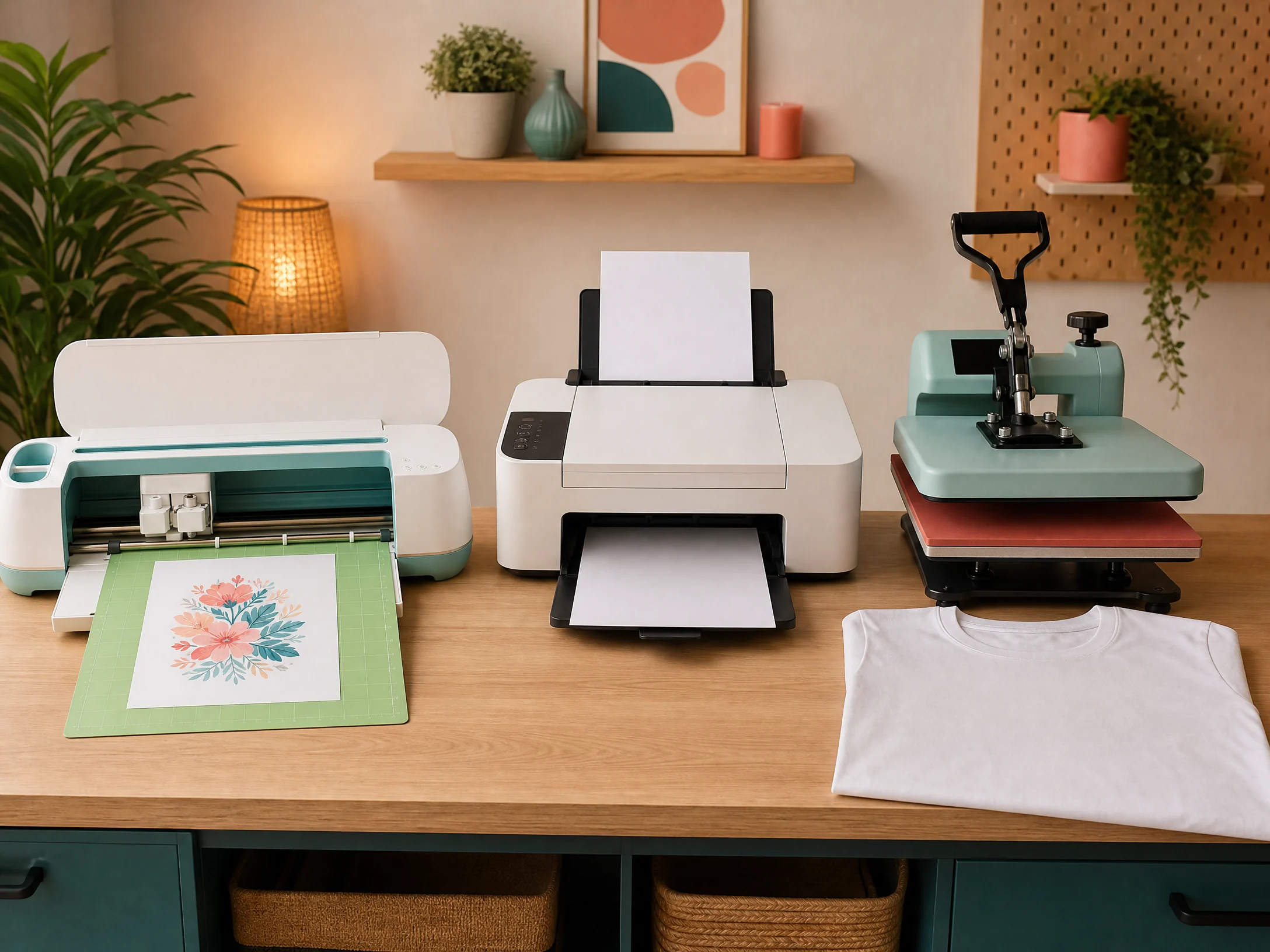
A Cricut can help you design, size, cut, align, and prepare sublimation projects. You still need a compatible sublimation printer and ink for printed transfers, plus a heat press and a sublimation-ready blank. Alternatively, Cricut Infusible Ink can create a related heat-transfer workflow without a separate sublimation printer, but it is a different product system with different designs and material requirements.
This guide explains sublimation with Cricut, how the pieces work together, which Cricut functions are useful, how to set up a project in Design Space, how to print and cut a transfer, and how to press shirts, mugs, tumblers, coasters, and other blanks without confusing Cricut cutting materials with sublimation materials.
Quick answer: Use Cricut Design Space to prepare your artwork and, when supported by your machine, use Print Then Cut to create a precise cut or placement guide. Print the mirrored design with a real sublimation printer, place it on a polyester or polymer-coated blank, and press it using the blank manufacturer’s settings. A Cricut can support the workflow, but it does not replace the sublimation printer or heat press.
What Is Sublimation?
Dye sublimation uses heat to move dye from special transfer paper into polyester fibers or a compatible polymer coating. The finished design becomes part of the surface instead of sitting on top as a thick vinyl layer.
Sublimation works best on:
- White or light-colored polyester shirts
- Polyester socks and other apparel
- Polymer-coated mugs
- Sublimation-ready tumblers
- Coated MDF and hardboard
- Ceramic, slate, metal, glass, and acrylic blanks made for sublimation
It does not work the same way on ordinary cotton, untreated wood, dark garments, or uncoated hard goods. For a general introduction, visit our Sublimation for Beginners guide.
Why sublimation is different from vinyl
| Decoration method | How it works | Surface feel | Typical materials |
|---|---|---|---|
| Sublimation | Dye bonds to polyester or a polymer coating | Smooth, no raised layer | Polyester apparel and coated blanks |
| Heat-transfer vinyl | A film is pressed onto the surface | Raised or slightly textured | Cotton, polyester, blends |
| Cricut Infusible Ink | Cricut transfer material infuses into compatible blanks | Smooth | Compatible polyester and coated products |
| DTF transfer | Printed film is bonded with adhesive powder | Soft or slightly raised | Cotton, polyester, blends |
A Cricut can help prepare several of these methods, but the printer, transfer material, blank, and press settings are not interchangeable.
Can You Sublimate With a Cricut?
Yes, but there are two different meanings of “Cricut sublimation.”
Option 1: Use a Cricut with a sublimation printer
In this setup:
- Create or upload the design in Design Space or another design program.
- Print the design with a sublimation printer and sublimation ink.
- Use the Cricut for Print Then Cut, trimming, templates, registration, or alignment when useful.
- Press the transfer onto a compatible blank with a heat press.
This is the most flexible option for full-color photographs, custom logos, gradients, and detailed artwork.
Option 2: Use Cricut Infusible Ink
Infusible Ink is Cricut’s own transfer system. You cut the design from Infusible Ink transfer sheets, weed the excess, and press it into a compatible blank.
Infusible Ink is useful for simple shapes, lettering, and patterned designs. It is not the same as printing a full-color sublimation transfer with a sublimation printer.
What a Cricut does not do
A Cricut cutting machine does not:
- Print sublimation ink
- Convert an ordinary printer into a sublimation printer
- Make a dark cotton shirt compatible with direct sublimation
- Replace a mug press or flat heat press
- Create white ink for a dark blank
- Make an uncoated mug or coaster sublimation-ready
What Cricut Machines Are Useful for Sublimation?
The best Cricut machine depends on the job, not simply on the product name. Model capabilities and Design Space features can change, so check Cricut’s current specifications before buying a machine.
| Cricut function | Why it helps with sublimation |
|---|---|
| Design Space | Creates, sizes, and arranges artwork |
| Print Then Cut | Cuts printed shapes or creates accurate edges when supported |
| Standard cutting | Cuts paper templates, alignment guides, stencils, and packaging |
| Scoring and drawing | Helps make product cards, labels, and packaging |
| Mat cutting | Prepares jigs, masks, and placement guides |
| EasyPress | Can press some flat sublimation blanks when the blank maker approves it |
| Cricut Mug Press | Presses compatible mug blanks using Cricut’s mug workflow |
Cricut Maker and Explore families
Many Maker and Explore models are useful for sublimation preparation because they can support design and Print Then Cut workflows, subject to the machine’s current feature set and material-size limitations.
A Maker can be helpful when you also want to cut thicker templates, packaging, jigs, or specialty materials. An Explore model may be enough for printed transfer preparation, paper trimming, and basic craft projects.
Cricut Joy family
Compact Joy models are convenient for small projects. Before planning a sublimation workflow, verify whether the exact machine supports the Print Then Cut feature you need and whether the printable area is large enough for your blank.
A small machine may be useful for labels, small designs, and templates but less practical for adult shirt fronts or large transfers.
The real buying question
Ask these questions before purchasing a Cricut for sublimation:
- Do I need Print Then Cut?
- What is the largest design I need to prepare?
- Will I cut paper templates or thicker jigs?
- Do I already own a printer and heat press?
- Do I want Cricut Infusible Ink or printed sublimation transfers?
- Will I make shirts, mugs, tumblers, coasters, or small accessories?
Cricut’s official documentation explains that Print Then Cut is a Design Space workflow and provides separate guidance for calibrating the machine for accurate cuts.[1][2]
Equipment Needed for Cricut Sublimation
For printed sublimation transfers, you generally need:
- Cricut cutting machine, optional but useful
- Computer, tablet, or phone running compatible Design Space software
- Sublimation printer
- Sublimation ink
- Sublimation transfer paper
- Heat press, mug press, or tumbler press
- Sublimation-ready blanks
- Heat-resistant tape
- Protective paper or butcher paper
- Lint roller
- Heat-resistant gloves
- Ruler or alignment tool
- Pressing pillow or pad for apparel
- Scissors or paper trimmer
For printer setup, see our Epson Sublimation Printer Settings guide. For press references, use our Sublimation Heat Press Settings guide.
How to Sublimate With Cricut Step by Step
Step 1: Choose the blank first
Start with the product, not the design. Confirm that the blank is compatible with sublimation and record its size and recommended settings.
Examples include:
- White or light polyester shirts
- Polyester socks
- Coated mugs
- Sublimation tumblers
- MDF coaster blanks
- Ceramic coasters
- Slate photo panels
- Polymer-coated ornaments
The material determines the press, time, temperature, pressure, orientation, and design size.
Step 2: Create or upload the artwork
You can use Design Space for simple layouts, lettering, basic shapes, and project organization. For detailed illustrations or photographs, many makers create the artwork in a dedicated graphics application and then upload a high-resolution PNG to Design Space.
Keep the final canvas proportional to the blank. Avoid enlarging a small image until it becomes blurry.
Step 3: Set the artwork to Print Then Cut when appropriate
Print Then Cut can be useful when the Cricut needs to cut around a printed transfer or create an accurate edge. Select the correct operation in Design Space and follow the on-screen instructions.
If you are simply printing a full rectangular sublimation sheet to trim by hand, Print Then Cut may not be necessary. A Cricut is optional for many sublimation projects.
Step 4: Mirror the design
Mirror the design before printing whenever the transfer will be placed printed-side-down. This is essential for:
- Shirts
- Socks
- Mugs
- Tumblers
- Coasters
- Names and quotes
- Logos and directional artwork
A Cricut cut file and a sublimation print can have different orientation requirements. Check the design after mirroring so text is not accidentally reversed twice.
Step 5: Calibrate Print Then Cut if needed
If the Cricut cuts outside the printed artwork, run the machine’s Print Then Cut calibration process. Cricut provides an official calibration workflow for improving cut alignment.[2]
Use the same printer, paper size, and settings that you plan to use for production. Changes in scaling, printer dialog settings, or paper placement can affect registration.
Step 6: Print the transfer
Print on sublimation paper using sublimation ink. The transfer can look pale before pressing; that is normal.
Do not print sublimation ink onto regular copy paper and expect the same result. The paper must release the dye correctly during heating.
Let the printed transfer dry according to the paper instructions before trimming and taping.
Step 7: Cut or trim the transfer
Use the Cricut to cut around a shaped design if that helps with placement. For many shirts, mugs, and square coasters, hand trimming with a paper trimmer is faster and more practical.
Remove excess paper around the design when possible. Less extra paper can make alignment easier and reduce the chance of unwanted marks.
Step 8: Prepare the blank
For apparel:
- Insert protective paper inside the garment.
- Pre-press briefly to remove wrinkles and moisture.
- Lint-roll the print area.
- Use a pressing pillow when seams create an uneven surface.
For hard blanks:
- Remove protective film if the manufacturer says to do so.
- Clean dust from the printable face.
- Confirm the coated side and orientation.
- Measure the printable area.
Step 9: Position and tape the transfer
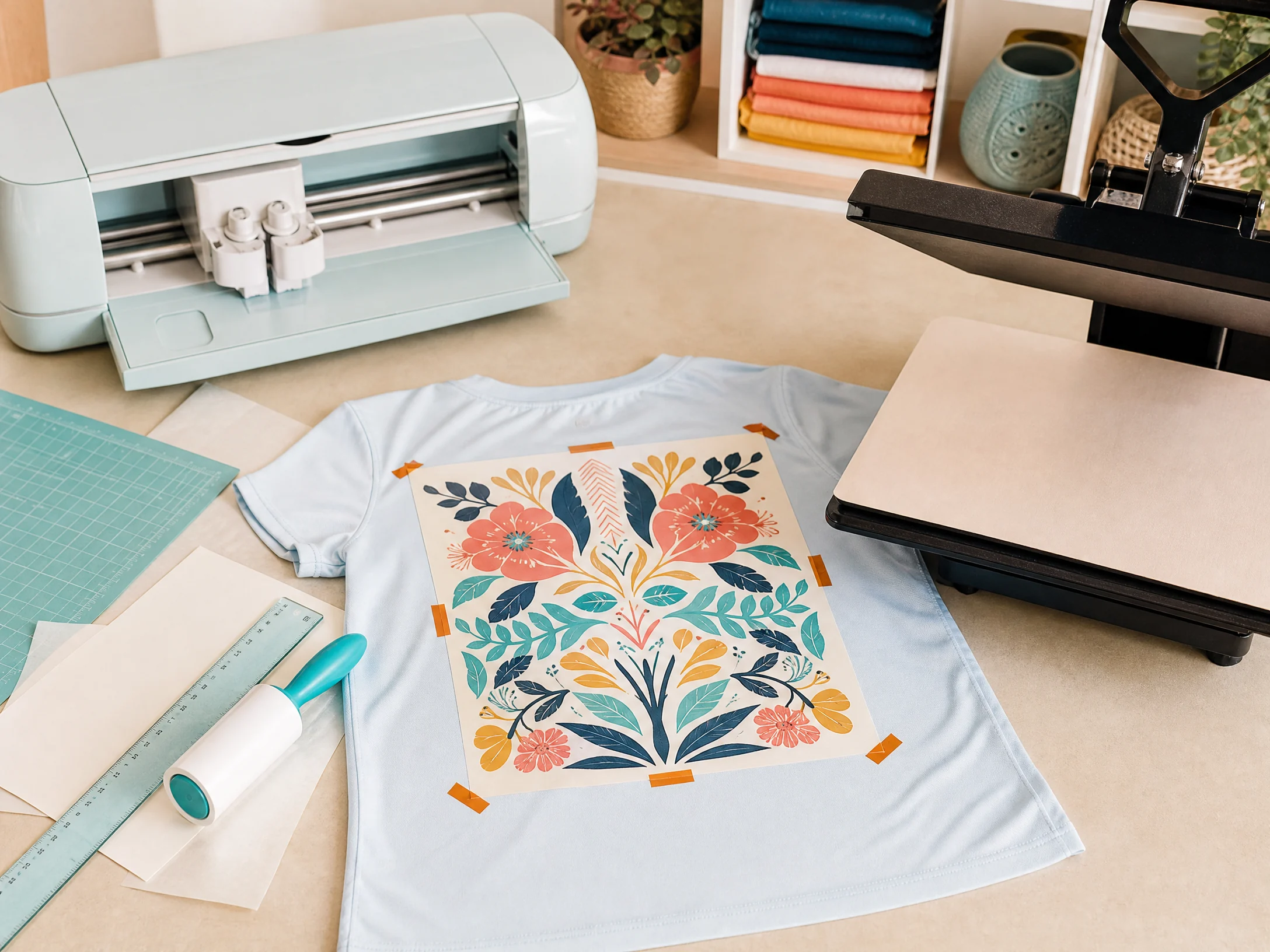
Place the transfer printed-side-down against the blank. Align the design using a ruler, template, or Cricut-cut guide.
Secure the paper with heat-resistant tape. Use enough tape to prevent movement, but avoid crossing the printable area or creating thick tape ridges.
Step 10: Press using the blank’s settings
Use a flat press for shirts and flat hard goods, a mug press for compatible mugs, and a tumbler press or oven method only when the tumbler manufacturer approves it.
Do not use a Cricut blade setting as a substitute for heat press settings. Cutting and pressing are separate parts of the process.
Step 11: Open, peel, and cool correctly
Lift the press straight up rather than sliding it. Sliding can create ghosting. Follow the paper and blank instructions for hot peel or cool peel.
Allow rigid blanks to cool on a clean, flat surface before stacking or packaging.
Step 12: Inspect the finished project
Check for:
- Correct orientation
- Complete color transfer
- Clean edges
- No ghosting
- No tape marks
- No moisture spots
- No lint or hair in the design
- Accurate placement
- No scorching or coating damage
Cricut Design Space Settings for Sublimation
Design Space is not a sublimation color-management program. The exact print dialog and color workflow may be handled by your printer software, such as a manufacturer’s print utility.
Use Design Space to:
- Upload PNG artwork
- Set dimensions
- Arrange multiple designs
- Add cut lines
- Create Print Then Cut projects
- Make templates and alignment guides
- Prepare packaging and labels
Use your sublimation printer’s software to manage:
- Sublimation ink selection
- Paper type
- Color profile
- Print quality
- Mirror settings, when not handled in Design Space
- Printer-specific maintenance
Cricut recommends keeping Design Space updated and checking system requirements. Design Space is separate from the printer’s sublimation software and has its own compatibility requirements.[3]
Cricut Infusible Ink vs Printed Sublimation
Both methods use heat and compatible materials, but they are not identical.
| Feature | Printed sublimation | Cricut Infusible Ink |
|---|---|---|
| Printer needed | Yes | No for transfer sheets |
| Full-color photos | Excellent | Limited compared with printed transfers |
| Custom gradients | Excellent | Depends on available sheet or marker workflow |
| Cricut cutting | Optional | Usually required |
| Compatible blanks | Polyester or polymer-coated | Cricut-compatible products and approved blanks |
| Main strength | Flexible custom artwork | Simple, clean designs with a Cricut workflow |
| Main limitation | Requires printer, ink, and profiles | Limited to compatible materials and transfer options |
Choose printed sublimation when you need photographs, detailed logos, or unlimited custom colors. Choose Infusible Ink when you want a simple Cricut-first project with compatible blanks.
Cricut Sublimation Projects
Shirts
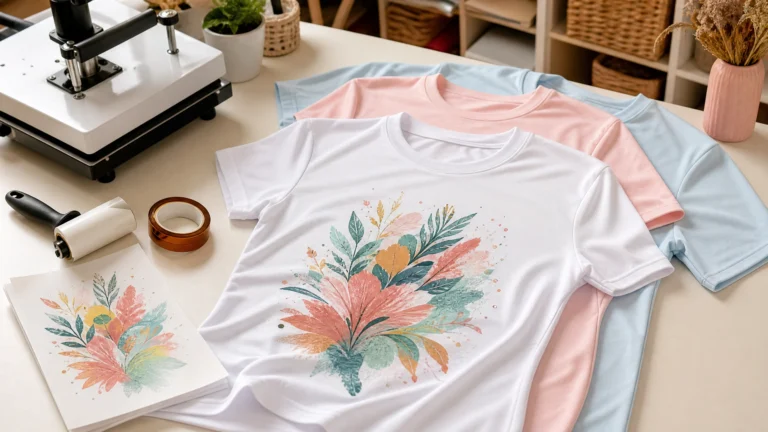
Use white or light-colored polyester shirts for direct sublimation. The Cricut can help with design sizing and Print Then Cut, but the shirt still needs a sublimation printer and heat press for printed transfers.
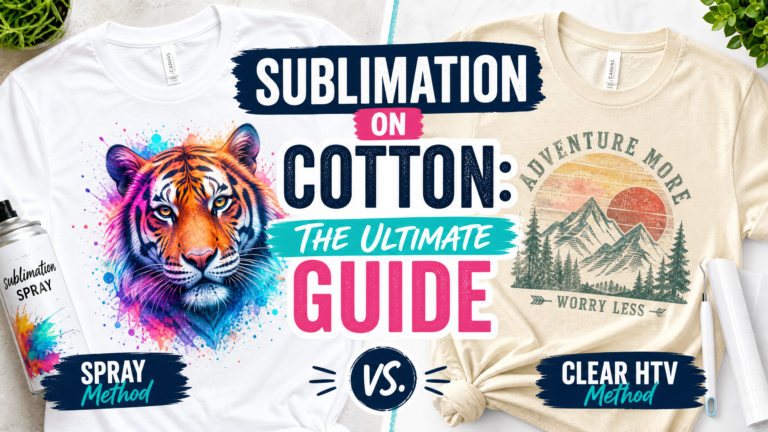
For colored polyester shirts, read our guide on How to Sublimate on 100% Colored Polyester Shirts. Remember that standard sublimation does not print white ink, so the shirt color changes white and pale parts of the design.
Mugs
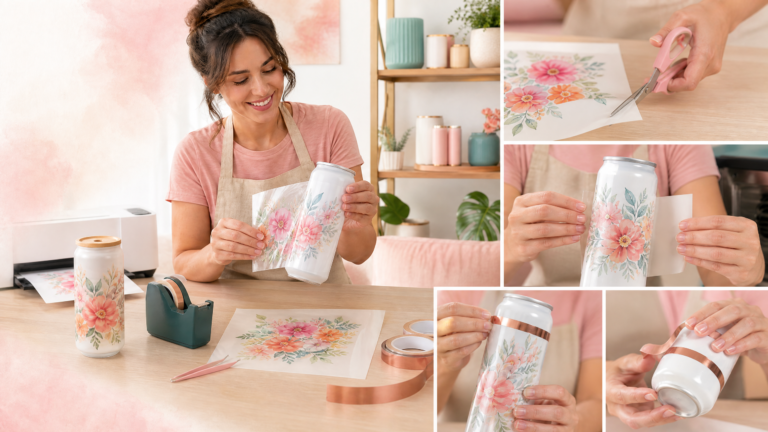
A Cricut Mug Press can be useful for compatible mug blanks, but follow Cricut’s safety and compatibility instructions. Cricut states that its Mug Press workflow is intended for compatible materials, and its official support pages provide mug preparation guidance.[4]
For broader mug techniques, see our How to Sublimate a Mug guide.
Coasters
Cricut can cut round or shaped designs and help create templates for MDF, ceramic, and other coated coaster blanks. Read our How to Sublimate Coasters guide for material-specific settings.
Socks
Use Design Space to size and prepare artwork, then print onto sublimation paper and press onto compatible polyester socks. A sock jig helps support the fabric during pressing. See our How to Sublimate Socks guide for sizing and jig tips.
Tumblers
A Cricut can help make templates, but most curved tumblers require a dedicated tumbler press or an approved oven method. Do not assume a Cricut EasyPress can apply even pressure around a full tumbler.
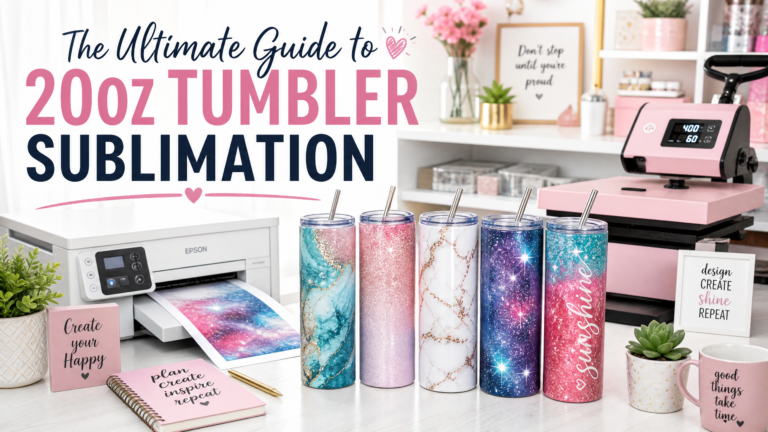
Our 20oz Tumbler Sublimation guide covers tumbler preparation and workflow.
Cricut Sublimation Settings: What to Remember
There is no single “Cricut sublimation setting.” The Cricut cuts or organizes the transfer, while the blank determines the heat press recipe.
Use this starting framework only for testing:
| Project | Typical starting range | Important note |
|---|---|---|
| Polyester shirt | Around 385–400°F, 45–60 seconds | Follow the shirt blank instructions |
| Polyester socks | Around 385–400°F, 35–60 seconds | Use a jig and test the exact sock |
| MDF coaster | Around 385–400°F, 50–90 seconds | Coating and thickness vary |
| Ceramic mug | Product-specific, often 350–400°F | Use a mug press or manufacturer method |
| Neoprene blank | Product-specific, often around 365–400°F | Use lighter pressure when instructed |
| Metal or coated hard good | Often around 400°F | Follow the exact coating instructions |
Our Sublimation Temperature Chart provides additional substrate references. Sawgrass also warns that general settings charts are starting points and recommends suitable blanks, calibrated equipment, testing, and manufacturer guidance.[5]
Common Cricut Sublimation Mistakes
Mistake 1: Thinking the Cricut prints sublimation ink
A cutting machine does not print sublimation transfers. You need a compatible sublimation printer, ink, and paper for printed sublimation.
Mistake 2: Using cotton or dark blanks
Direct sublimation needs polyester or a compatible polymer coating. Dark blanks usually cannot show bright results because standard sublimation does not print opaque white.
Mistake 3: Forgetting to mirror
Unmirrored text appears backward after pressing. Check the design orientation before printing.
Mistake 4: Using the wrong paper side
Sublimation paper has a printable side. Loading it incorrectly can produce weak or incomplete transfers.
Mistake 5: Treating every blank like a shirt
A mug, coaster, sock, and shirt need different pressure and heat-transfer methods. Use the product instructions.
Mistake 6: Taping over the artwork
Tape can block ink transfer or leave a visible line. Secure the paper at the edges.
Mistake 7: Sliding the press
Opening the press by sliding the platen can shift the transfer and create a ghost image. Lift it straight up.
Mistake 8: Skipping a test piece
A beautiful design can look very different on gray polyester, a glossy mug, or textured slate. Test the exact blank before starting an order.
Mistake 9: Using Print Then Cut without calibration
If the cut is off, calibrate the machine and keep printer scaling consistent. Cricut’s calibration instructions are designed to improve cut alignment.[2]
Mistake 10: Pressing seams, zippers, or thick edges
Use a pressing pillow and position the design on a flat part of the blank. Uneven pressure can create faded areas or press marks.
Troubleshooting Cricut Sublimation Projects
The cut is not aligned with the print
Check Print Then Cut calibration, printer scaling, paper placement, mat alignment, and Design Space settings. Do not change several variables at once.
The design is blurry
The paper moved during pressing. Add heat-resistant tape, stabilize the blank, and lift the press straight up.
The colors are dull
Check the blank, polyester content, printer nozzle pattern, ink, paper, press temperature, time, and pressure. Sawgrass recommends beginning color troubleshooting with a nozzle check and reviewing the full print workflow.[6]
The shirt has white spots
Lint, moisture, or wrinkles may have blocked the transfer. Pre-press, lint-roll, and keep the transfer surface clean.
The mug has a blank line
The design may not be flat against the straight printable area, or the mug was not compatible with the press. Follow the mug blank’s wrap template and preparation instructions.
The transfer looks pale before pressing
This is normal for sublimation paper. Judge the final result after pressing, not the unpressed sheet.
The design is backward
The design was not mirrored, or it was mirrored twice. Check the full workflow from Design Space through the printer dialog.
Is Cricut Sublimation Worth It?
A Cricut can be valuable if you want one machine to prepare designs, cut templates, create packaging, and support Print Then Cut projects. It is especially useful for makers who already own a Cricut and want to add sublimation without abandoning their existing workflow.
However, do not buy a Cricut expecting it to replace a sublimation printer. The printer and heat press are still the core equipment for printed sublimation.
For a small business, calculate the cost of:
- Cricut machine
- Sublimation printer
- Ink and paper
- Heat press or mug press
- Blank products
- Cutting mats and blades
- Tape and protective paper
- Test pieces
- Design software and packaging
Start with one product category, such as shirts, mugs, or coasters, and record your settings. You can expand after you have a repeatable workflow. Our How to Start a Sublimation Business guide can help with the broader planning.
Frequently Asked Questions
Can a Cricut machine do sublimation?
A Cricut can support sublimation by preparing designs, cutting transfers, and creating templates, but it does not print sublimation ink. Printed sublimation requires a compatible sublimation printer, ink, paper, heat press, and sublimation-ready blank.
Do I need a Cricut for sublimation?
No. A Cricut is optional. Many sublimation projects can be printed, hand-trimmed, taped, and pressed without a cutting machine.
Can I use a Cricut EasyPress for sublimation?
An EasyPress may work for certain flat blanks if the manufacturer approves the method and you can maintain even contact. It is not automatically suitable for every mug, tumbler, coaster, or oversized design.
Can I use a Cricut Mug Press for sublimation?
The Cricut Mug Press can be used with compatible mug blanks and Cricut’s approved workflow. Check Cricut’s current compatibility and preparation instructions before using third-party mugs.
Can I use Cricut Design Space for sublimation designs?
Yes. You can use Design Space to upload, size, arrange, mirror, and prepare designs. Detailed artwork may be easier to create in a graphics application and then upload to Design Space.
Do I need Print Then Cut for sublimation?
No. Print Then Cut is helpful for shaped transfers, precise edges, and templates, but simple rectangular transfers can often be trimmed by hand.
Is Cricut Infusible Ink the same as sublimation?
Infusible Ink uses a related heat-infused concept, but it is a Cricut transfer system rather than the same as printing custom full-color artwork with a sublimation printer. The materials and blank requirements differ.
Can I sublimate on cotton with a Cricut?
A Cricut does not make cotton compatible with standard dye sublimation. Use a compatible specialty medium or a different decoration method for cotton garments.
Can I sublimate on black shirts with a Cricut?
Not directly with standard sublimation ink. Dark shirts overpower translucent dye and standard sublimation does not print white ink. Use a compatible white-base transfer system or another printing method.
Final Cricut Sublimation Checklist
Before pressing, confirm that:
- You know whether you are using printed sublimation or Infusible Ink.
- The blank is compatible with the selected method.
- The design is high resolution and correctly sized.
- The artwork is mirrored once—not zero times or twice.
- Print Then Cut is calibrated if you are using it.
- The paper is loaded on the correct side.
- The shirt or blank is clean and dry.
- Protective paper is in place.
- Heat-resistant tape holds the transfer securely.
- The press settings match the blank manufacturer’s instructions.
- You tested one project before producing a full batch.
- The transfer will be lifted rather than slid after pressing.
Cricut and sublimation work well together when each tool has a clear job. Use the Cricut for design preparation, cutting, templates, and organization; use the sublimation printer for the dye transfer; and use the correct heat press and blank settings for the final product.